
Keeping a keyboard in top form is one of the joys of the hobby, ensuring that each tap feels as satisfying as possible. The key to maintaining a delightful clack is regularly lubricating your hardware and using the right key switch for your tastes. Here’s how to change mechanical keyboard switches and lubricate them, so your keyboard can have a top-tier clack.
Jump to a section:
- How to remove and change mechanical keyboard switches
- How to lube keyboard switches
- How to lube switches without desoldering
- Best lube for keyboard switches
- Troubleshooting: What to Do if Your New Switch Doesn’t Work
- Maintenance: The "While You’re In There" Cleaning Rule
- Finding Your Perfect Interface: HHKB Studio vs. Professional

How to remove and change mechanical keyboard switches
There are two main types of key switches: hot-swappable and soldered. Hot-swappable key switches, like those used on the HHKB Studio, are relatively easy to change, but soldered switches require a bit more technique and preparation. Make sure you know which type of key switch you have before attempting to change them, otherwise you might damage your board. Let’s go over what you’ll need to get the job done without damaging your keyboard or your new switches.

The tools you’ll need to change mechanical keyboard switches
- Wire Keycap Puller: Avoid the plastic "ring" pullers that often come free with budget keyboards. Wire pullers are more flexible and won't scratch the sides of your premium PBT keycaps.
- Stainless Steel Switch Puller: Look for a slim, reinforced stainless steel puller. This allows you to grip the small plastic tabs on the top and bottom of the switch housing securely without slipping and marring the keyboard plate.
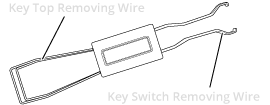
You can find combination keycap and switch pullers like in the diagram above. We also offer the same tool with our keycap sets for the HHKB Studio.
- Nice to have:
- Precision Tweezers: Essential for the troubleshooting phase. If you accidentally bend a metal pin during installation, a pair of fine-tipped tweezers is the only way to safely straighten it without snapping the copper.
- Compressed Air or Electric Duster: Used to clear the PCB and hot-swap sockets of any debris once the old switches are removed. A clean socket ensures a perfect electrical connection.
- Small Magnetic Tray: Switch swapping involves many small parts. A magnetic tray keeps your extra switches and stabilizers from rolling off your desk.
- Flush Cutters: Only necessary if you are installing 5-pin switches into a 3-pin board. These allow you to snip off the plastic stability legs cleanly and flush to the housing. Scroll down to the 5-pin vs 3-pin section below to learn more.
How to remove hot-swappable keyboard switches
Before changing keyboard switches, ensure you have all the necessary tools and replacement switches nearby to avoid losing anything. Once you’re ready, here’s what to do (we’ll use diagrams of the HHKB Studio as examples):
- Remove the key cap. Position the keycap puller’s two wire arms around the keycap, taking care not to scratch the key. Lift the keycap slowly but firmly. If the switch comes off with the keycap, use your tools to hold the switch in one hand and pull the keycap off with the other.
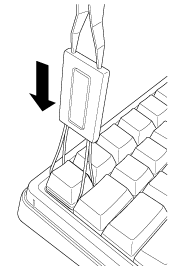
- Place your keycap off to the side. Take care to keep each one in order. This will save you some time if you're reusing the keycap with your new switches. Repeat this process for each key cap.
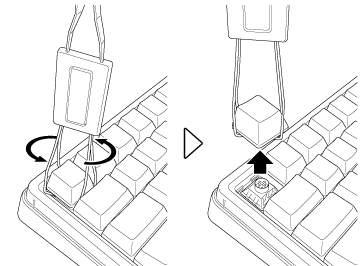
-
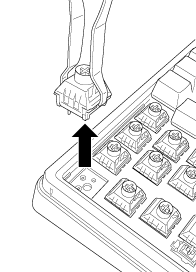
Remove the switch. Once all the keycaps have been taken care of, pluck the keyboard
switches out using your switch puller. Clip the tool around the top and bottom sides of the switch and pull
gently. If the switch sticks, wiggle it gently. Never force a key from the board.
- With the old switches removed, this is the perfect time to consider cleaning your board before adding the new switches.
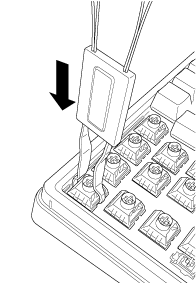
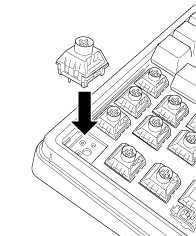
- Position the replacement switch. Align the switch with the slot, then push it into place. The switch should slide into the slot easily, so double-check for debris and proper alignment if it hits a snag.
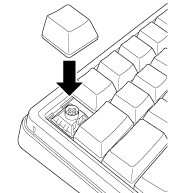
- Replace the keycap: Push the keycap onto the new switch, and you’re all set!
Safety Warning: Never force a switch into the socket. If you encounter heavy resistance, stop immediately. Forcing a misaligned switch can permanently damage the hot-swap socket on the PCB, which is much harder to repair than a bent pin.
How to remove soldered keyboard switches
Don’t try to change soldered keyboard switches without soldering experience, as you risk destroying your entire keyboard — not to mention the danger of burning yourself. The process of replacing soldered keyboard switches is similar to hot-swap keys, with the added steps of desoldering the old switches from the board before removing them and soldering the new ones into place.
- Remove the keyboard from its case entirely, exposing the PCB itself.
- Flip the PCB over, where you’ll see the small bumps of solder for each key switch. Desolder each switch.
- Vacuum up the excess solder with a desoldering pump.
- Add the new switch, then solder it into place.
Carve out an appropriate amount of time to change soldered keyboard switches. The time it takes to complete the task will depend on your skill with a soldering iron, but it will likely be a few hours to complete the entire process. Again, only attempt this if you feel confident using a soldering iron.
5-Pin vs. 3-Pin: Understanding Switch Clipping
When shopping for new switches, you will likely encounter two versions: 3-pin (Plate Mount) and 5-pin (PCB Mount). A 5-pin switch is identical to a 3-pin switch but features two extra plastic "stability pins" on the bottom. While many modern hot-swap keyboards (like the HHKB Studio) feature 5-pin compatible PCBs, some boards only have holes for 3 pins. If you try to install a 5-pin switch into a 3-pin board, the switch won't seat flush against the plate.
If you find yourself with 5-pin switches and a 3-pin board, you don't need to return them—you can simply "clip" them. Using a pair of flush cutters or a small nail clipper, snip off the two extra plastic side-pins so that only the center large plastic post and the two metal contact pins remain.
Once clipped, the switch will fit perfectly into any 3-pin hot-swap socket. This modification is purely structural and will not affect the electrical performance or the feel of the switch. It is a common "pro-tip" in the community to buy 5-pin switches by default, as they offer more stability on 5-pin boards but can always be clipped down if you decide to move them to a 3-pin board later.
Did You Know?:The HHKB layout repositions the control key to make it easier to execute more time-saving commands without leaving the home row. Click here to learn more.
How to lube keyboard switches
No matter which key switches you’re using, they’ll need to be lubricated from time to time to ensure that they feel and sound as delightful as possible. On top of the tools you need to remove a keyboard switch, you’ll need a switch opener or a small flathead screwdriver, lube (we cover your options a bit further down), and a small brush to lubricate your key switches.
There are some differences between lubricating tactile and linear switches, which will be noted in the following steps. Here’s what you need to do:
- Take apart the switch: Loosen the brackets around the key switch that hold the upper and lower casing together with a switch opener or a flathead screwdriver.
- Lube the bottom housing: Using a small amount of lube (you don’t want globs), carefully brush the rails of the bottom housing, which is the area that sees the most contact with the switch. Next, lube the bottom housing floor and the inside and outside of the center column. You can also lube the contact flaps if you have linear switches, but this should be avoided for tactile switches.
- Lube the spring: If you’re only doing one switch, lube it on its own using your brush. However, you can lube springs in batches if you’re doing a bunch of them. Add the springs and 5-7 drops of lubricant to a plastic sandwich bag, then shake the bag for a few minutes. Feel the springs to ensure they’ve been coated, and shake a bit more if they need a better coating.
- Lube the stem: The stem is the most important part of the switch, so take extra care here. Hold the cross portion of the switch, then lube the sides. Next, lube the feet unless you have tactile switches, which should be left alone. Lubing the feet of a tactile switch will dramatically reduce its tactility. Additionally, don’t over-apply lube to the stem, as it can result in air pockets forming.
- Lube the top housing: Evenly spread the lube between the four interior sides of the top housing, just as you did the bottom housing.
- Reassemble the switch: Now that everything is lubricated, put it back together, and you’re finished.
Did You Know?:Handy HHKB accessories such as a keyboard lid and adjustable stand help make the most of your board. Click here to learn more.
How to lube switches without desoldering
Lubricating a soldered keyboard without desoldering isn’t going to be as effective as fully removing the switches, but it’s still worthwhile maintenance. To lube your keyboard, you’ll need a lube syringe.
- Remove the keycaps: Taking off the keycaps will make applying switch lube to each key much easier.
- Press down on the stem: You don’t have to apply a lot of pressure, but you’ll need to expose a large space to insert your lube nozzle.
- Add lube: Squeeze a small amount of lube into the gap with your syringe, then click the switch a few times. Wipe away any excess lube from the keyboard.
- Replace the keycap: Poof, you’ve got a lubricated keyboard. Wipe down the keyboard of any excess lube, and you’re finished.
Best lube for keyboard switches
The options for mechanical keyboard switch lube are as diverse as key switches. When choosing a key switch lube for your build, the best option will depend on the type of switch you have.
Best lube for linear switches: Krytox 205g0
Krytox 205g0 is a thin lubricant for linear key switches. It’s considered a go-to solution in the keyboard community thanks to its ability to improve a switch’s sound profile and feel.
Best lube for tactile switches: TribosSys 3203
TriboSys 3203 is a medium-viscosity lubricant for tactile switches. However, it can be used on linear switches in smaller quantities for those who want something similar to their keyboard’s stock sound and feel.
Then again, you could avoid this entire process by choosing a keyboard with switches that are silky smooth from the start. The HHKB Professional line of keyboards, with their premium Topre switches and a unique layout designed for ultimate customizability, are a favorite of programmers, and typists of all backgrounds. To learn more, check out the full range of high-end keyboards from HHKB.
Troubleshooting: What to Do if Your New Switch Doesn’t Work
Swapping switches is generally straightforward, but because you are dealing with delicate metal pins and high-precision sockets, things don't always go perfectly on the first try. If you plug your keyboard back in and a key isn't responding, don't panic—it is almost always a simple physical alignment issue.
1. The Key Isn't Registering at All
This is the most common issue, usually caused by a bent pin. When a switch is pushed into the socket at even a slight angle, the thin copper pins can fold over instead of sliding into the receptor.
-
The Fix: Pull the switch back out using your switch puller. Inspect the two metal pins on the bottom. If one is pressed flat against the plastic housing, use a pair of tweezers or your fingernail to gently straighten it. Re-align the switch perfectly vertical and try again.
2. The Switch Won't Sit Flush Against the Plate
If the switch feels "springy" or refuses to click into place, there is likely a physical obstruction.
-
Check for Pin Count: Ensure you aren't trying to force a 5-pin (PCB Mount) switch into a 3-pin (Plate Mount) board. If your keyboard doesn't have the two extra alignment holes, you will need to clip the two plastic side-pins off the switch with flush cutters.
-
Check for Debris: Sometimes a small piece of plastic or dust can fall into the hot-swap socket during the swap. Use a blast of compressed air to clear the socket before trying again.
3. "Key Chattering" (Double Typing)
If pressing the key once results in "ttype" instead of "type," the switch is "chattering."
-
The Fix: This is usually a sign of a faulty switch or a loose connection in the socket. First, try swapping that specific switch with a known working one from a different part of the board. If the problem follows the switch, the switch is defective. If the problem stays at the same key location, the hot-swap socket on the PCB may be loose and require a gentle "re-tightening" (though this is rare with high-quality boards like the HHKB Studio).
4. The Key Feels "Mushy" or Stuck
If the key goes down but feels sluggish or doesn't return to the top quickly, the issue is likely the Stabilizer rather than the switch.
-
The Fix: This only happens on larger keys (Spacebar, Shift, Enter). Ensure the switch is centered correctly between the stabilizer stems. If you recently lubed your switches, you may have used too much, causing "stiction." Wipe away any excess lube from the outside of the switch housing.
Maintenance: The "While You’re In There" Cleaning Rule
The best time to deep clean your keyboard is during a switch swap. With the keycaps and switches removed, you have unobstructed access to the switch plate and the PCB, where dust, hair, and debris tend to accumulate over time.
While your board is bare, we recommend a three-step maintenance routine:
-
Clear the Debris: Use a canister of compressed air to blow out any particles trapped in the hot-swap sockets or under the stabilizers.
-
Detail the Plate: Use a microfiber cloth slightly dampened with 70% isopropyl alcohol to wipe away oils and grime from the plate surface.
-
Inspect the Sockets: Check for any oxidation or stray solder balls that might interfere with your new switches' electrical contact.
Taking these extra five minutes ensures your new switches perform at their peak and prevents "key chatter" caused by dirty contacts. For a full step-by-step breakdown on safely sanitizing your gear without damaging the electronics, check out our complete guide on cleaning keyboards and keycaps.
Finding Your Perfect Interface: HHKB Studio vs. Professional
If you’re ready to put your new switch swapping skills to the test, the HHKB Studio is the definitive choice for the modern customizer. Designed with a hot-swappable PCB, the Studio allows you to experiment with the entire world of MX-style switches—linear, tactile, or clicky—without ever touching a soldering iron. It’s a high-performance canvas built for those who want a premium, 60% layout with the freedom to change its soul at any time.
However, for those seeking the "end-game" of typing comfort, the HHKB Professional and Classic lines offer a different kind of perfection. These legendary boards utilize Topre electrostatic capacitive switches. Unlike the modular MX switches we’ve discussed, Topre switches are an integrated, contactless assembly featuring a conical spring and a soft rubber dome. They aren't "swapped" in the traditional sense because they don't need to be—their unique, pillowy "thock" and ergonomic reliability have set the industry standard for over 25 years.
Ready to upgrade your desk?
-
Choose the HHKB Studio if you want a hot-swappable powerhouse that evolves with your favorite mechanical switches.
-
Choose the HHKB Professional HYBRID if you want the ultimate, maintenance-free typing experience powered by legendary Topre technology.
Note: Information and external links are provided for your convenience and for educational purposes only only and shall not be construed, or relied upon, as medical advice, treatment, or diagnosis. PFU America, Inc. makes no representations about the contents, features, or specifications on such third-party sites, software, and/or offerings (collectively “Third-Party Offerings”) and shall not be responsible for any loss or damage that may arise from your use of such Third-Party Offerings. Please consult a licensed professional regarding your specific health needs.