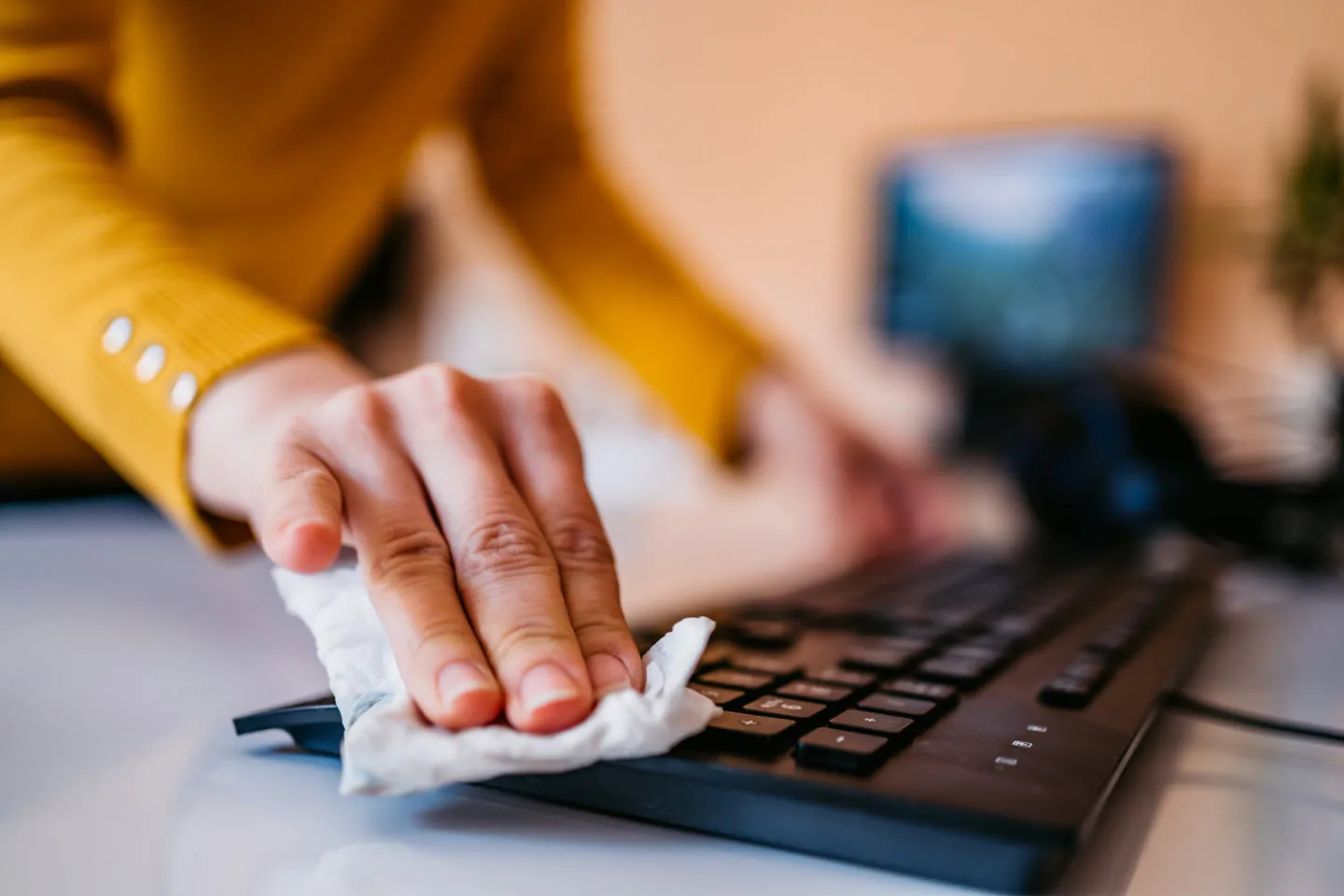
Handy tips for keeping your keyboard at its best
If you want to keep your keyboard working better for longer, you need to learn how to clean it properly. Since every keyboard is a unique combination of moving parts, many of which come in frequent and direct contact with their users, it’s important to get this process right.
Fortunately, learning how to clean keyboards and keycaps isn’t too complicated. You just need to know what you’re working with, gather the right materials ahead of time, and follow a few simple steps. While you’re creating or optimizing your keyboard cleaning routine, we’ll also give you some maintenance tips that should help you enjoy your board for many years to come.
Jump to a section:
- Tools for keyboard cleaning
- How to clean your keyboard
- How to clean keyboards with non-removable keycaps
- How to clean a mechanical keyboard
- Common mistakes to avoid when cleaning keycaps
- How to maintain and care for your keyboard
- Preventative keyboard maintenance tips
- Try a keyboard with a clean form and proven function

Tools for keyboard cleaning
Before you learn how to clean keyboard parts, you’ll need a few simple tools and cleaning supplies:
- Gentle dish soap: Some dish soaps are harsher than others. Look for a soap with “gentle,” “mild,” or a similar descriptor, and you should be in good shape.
- Small brush: Use a (clean!) small paintbrush, makeup brush, toothbrush, or specialized keyboard cleaning brush to dislodge and wipe away larger accumulations of dirt, dust, and debris.
- Compressed air: Compressed air can blast away any lingering crud that remains after an initial brushing.
- Microfiber cloth: Microfiber cloths are good for wiping grime from keyboards without scratching or otherwise damaging components.
- Keycap puller: A keycap puller helps you lift the keycaps away from your keyboard’s switches without damaging them. Many mechanical keyboards come with a keycap puller, so check to see whether you have one before you buy another.
Some other tools could come in handy, but they’re not strictly necessary. Wooden toothpicks or rubber erasers can sometimes lift grime better than a cloth. Q-tips might perform better than brushes, depending on your keyboard’s shape.
Did You Know?:You can get colorful keycaps, wooden wrist rests, protective lids and more for your HHKB. Check out our accessories page to learn more.
How to clean your keyboard
For most keyboards, cleaning is a fairly easy task that shouldn’t take more than half an hour or so of active work. Since keycaps are the part of your board you touch most frequently — and because they cover a place where dust and dirt commonly collect — most keyboard cleaning regimens start here.
Here are a few reasons why it’s worth taking the time to give your keycaps a deep clean:
- It’s hygienic. The average adult user types about 200 characters per minute. Assuming you spend an hour per day typing, that’s around 12,000 keystrokes — 12,000 times your fingers come into contact with the same surfaces. It’s worth keeping those surfaces clean to prevent the spread of germs, especially if anyone else ever uses your keyboard.
- It can protect the rest of your board. Your keycaps are the first line of defense between your keyboard and grit, grease, and other contaminants that could potentially impair its functionality. If your keycaps stay cleaner, the rest of your board likely will, too.
- It’s an important part of an overall keyboard care routine. To keep your keyboard running smoothly, you need to take care of it. Learning how to clean keycaps and doing so regularly is a great first step toward regular keyboard maintenance.
How to clean keyboards with non-removable keycaps
Start by unplugging your keyboard from your computer. If your keyboard is part of your computer, such as with a laptop, power off the entire unit. Don’t plug the keyboard in or turn it back on until it’s had the chance to completely dry.
First, use either a duster or compressed air to remove any loose dirt from the surface of your keycaps. Then, dampen a microfiber cloth with water and gently wipe the surface of each keycap. If you have trouble reaching the sides of your keycaps with a cloth, revisit those parts later with dampened cotton swabs. You can use the same cloth to wipe the exterior surfaces of your keyboard frame, although you may wish to wring it out and remoisten it first.
Take care not to use a cloth or swab that is damp to the point of dripping. You may want to use distilled water to reduce the chance of leaving unsightly water spots behind, especially if your keycaps have a glossy finish.
For a deeper clean, consider adding a few drops of dish soap to the water you use to dampen your cloth or cotton swabs. If you do, you may need to give each keycap a second pass with pure water to avoid leaving behind a soapy film once they dry.
Did You Know?:There’s a lot more to keycaps than just their legends. Learn about their different materials, profiles, and looks in our complete guide to keycaps.
How to clean a mechanical keyboard
Unplug your keyboard, then take a top-down picture of the board that shows the position of all the keys. This will help you return them to their proper positions later on. Even if your keycaps don’t have legends, they may not be interchangeable. Look at your keys from the side to see if they have different keycap profiles from row to row. This is the case for HHKB keyboards and many others, so be sure to account for this as you plan.
Next, use your keycap puller to remove each keycap, one at a time. Pay special attention to extra-wide or irregularly shaped keys, such as the spacebar and Enter, as you may need to disconnect their keyboard stabilizers before removing their caps.
Using soap and water for a deep clean
Now, it’s time to give your hardworking keycaps a relaxing bath. Mix a few drops of dish soap into a bowl full of water, then drop in your keycaps (you may want to use separate, smaller bowls for each row if your keycaps are blank and have varying profiles). Let them soak overnight for an easy deep clean. In the morning, or at least six hours later, carefully pour your soapy keycap concoction into a colander or similar draining container, then rinse the caps well with water. Place them on a towel to dry for a few hours.
While your keycaps are soaking or drying, now is the perfect time to give the rest of your keyboard a deep clean with a brush, compressed air, and a damp (not dripping) microfiber cloth. Once the keycaps are done drying and the rest of your keyboard is pristine, consult your reference image to replace each cap one by one.
Cleaning keycaps with isopropyl alcohol: Dos and don’ts
For most circumstances, cleaning keycaps with soap and water is enough. However, if you’re looking to give them a deeper, sterile cleaning, it can be tempting to reach for that bottle of isopropyl alcohol (IPA). However, IPA reacts far differently with keycap plastics and dyes than water does, and can leave an awful mess if you’re not careful.
If you do decide to use IPA, keep these tips in mind.
- Do use it sparingly. Avoid soaking the entire keycap in IPA fluid. Instead, dip a cotton swab in the solution and use that to rub out any stubborn spots or smudges.
- Don’t use it on ABS caps. These keycaps tend to be made with more brittle plastic than PBT caps and often rely on lower-quality dyes to keep costs low. As a result, IPA solutions are far more likely to ruin these keycaps. If you don’t know what type of plastic your keycaps are made of, stick to soap and water.
- Do use at least 70% IPA. The percentage refers to the moisture content of the solution. The higher the percentage, the faster it evaporates, meaning it’ll have less time to soak into the keycap chemicals and ruin the dye. 70% is OK for most circumstances, though the closer you can get to 100%, the better.
- Don’t apply IPA to the keycap legend. Depending on how the ink is applied, IPA may cause the lettering to fade or even disappear.
- When in doubt, use soap and water. Soap and water are safe, no matter what kind of plastic your keycaps are made from. They’re usually enough to clean all but the dirtiest of keycaps.
Quick cleaning solutions for everyday maintenance
While every keyboard deserves a deep cleaning every now and then, regular upkeep will keep them in pristine condition for years to come. Here are a few tips to keep your keycaps looking stunning that only take a few minutes out of your day.
- Use a thick, dry brush to sweep away dust. All you need is a clean paintbrush (or other type of small, handheld brush). Simply wipe around the keys and into the crevices and you’ll have a dust-free board in moments.
- Blow compressed air into the cracks. This will remove any errant dust bunnies that have holed up underneath the keys, and can help improve typing performance without having to do a full cleaning.
- Use a dust cover. Placing a fitted cover over your keyboard when you’re not using it will do a lot to prevent dust and debris from building up over time.
Did You Know?:The HHKB Professional Snow Collection may be our cleanest look yet. Find your new favorite here.
Common mistakes to avoid when cleaning keycaps
If it’s your first time cleaning keycaps, it’s easy to make a few mistakes here and there. Keep these in mind to avoid damaging your board and caps:
- Unplug your board during cleaning. This will prevent long-term damage to your board and computer, and keep you safe from potential electrocution hazards.
- Avoid scrubbing too forcefully. You may come across a stubborn bit of grime, but remember to take care — applying too much pressure may cause keycap dye to rub off.
- Allow keycaps to dry completely. Sometimes, water droplets can get caught within the tiny plastic bits on the underside of the keycap. If that hasn’t dried, it can drip into the internal keyboard components, causing lasting damage. Also, don’t plug your keyboard back in until everything has fully dried.
- Consult with your keyboard manufacturer if unsure. First time cleaning or unsure how to go about cleaning your keyboard? Check out the user manual and/or contact your keyboard manufacturer directly.
How to maintain and care for your keyboard
Your first step before maintaining your keyboard should be to check its user manual and warranty information. This will help you find the best way to work on your particular board. It will also help you steer clear of any keyboard care procedures that could void your warranty. If you don’t have your manual or warranty information handy, try searching for it on your keyboard manufacturer’s support site.
The next step is to determine what type of board you have. For instance, if you have a mechanical keyboard, you may be able to disassemble some parts of the board for repairs. Other kinds of keyboards — especially those built into laptops — may need to remain in one piece when you service them.
With those details established, let’s move on to some keyboard care tips that may help you keep your keyboard in peak condition.
Preventative keyboard maintenance tips
Some simple keyboard maintenance can help prevent issues down the line. Try integrating these tips into your routine:
Keep your keyboard out of the elements
Most keyboards were designed for use in controlled home or office conditions. Extended exposure to sunlight or large changes in temperature may damage their components. If your workspace receives a significant amount of sunlight, consider covering your keyboard with a protective cloth or case when you aren’t using it.
If you store your keyboard in a cold or hot space between sessions, give it a few minutes to return to room temperature before using it. This will reduce the risk of damage to its moving parts during operation, as they may have swollen, shrunk, stiffened, or loosened due to the temperature changes.
Update your firmware
One of the easiest to perform, yet also easiest to forget, parts of keyboard care is updating your firmware. Many modern keyboards have little internal computers of their own that help them communicate with your computer, manage wireless connections, store multiple layouts, and so on. Keeping your board’s firmware up-to-date will help its supported features operate at their best.
If your keyboard comes with an accompanying software tool, you may be able to use it to automatically install firmware updates. Otherwise, make a point of checking your keyboard manufacturer’s support website every few months for new firmware to download.
Did You Know?:Want to try putting together your own mechanical keyboard? Our guide to custom keyboards can help.
Mechanical keyboard maintenance
Since many mechanical keyboards are built with user modifications in mind, they come with some extra considerations for proper care — but they can also be easier to maintain. (Just don’t forget to consult your user manual and warranty information before attempting any home repairs.)
For instance, if any of your keys are feeling sticky or rough, or are failing to register keypresses, you may be able to fix the problem yourself. Start by checking the mechanical keyboard switches (and keyboard stabilizers if applicable) underneath the corresponding keys to see if any foreign material has become lodged within them. If so, you may be able to use a small brush or pair of tweezers to remove the object.
Still running into problems with that key? You may need to replace the switch entirely. If your keyboard has hot-swappable switches, you will likely be able to use your keyswitch puller to pop the whole thing out and slot in a new one. Keyboards with soldered switches may require more effort to maintain, so make sure you know which kind you have before you start.
Try a keyboard with a clean form and proven function
At HHKB, we appreciate a keyboard that’s clean in more ways than one. That’s why we made a keyboard with a sleek, minimalist look that’s also easy for users to take apart and clean. But the HHKB Professional HYBRID Type-S doesn’t just look good on the outside; its electrostatic Topre key switches provide an unparalleled typing feel, and its intelligently designed layout promotes more efficient and ergonomic usage for those who type to live.
Find your next favorite in the full line of high-end keyboards from HHKB.
Note: Information and external links are provided for your convenience and for educational purposes only. PFU America, Inc. makes no representations about the contents, features, or specifications on such third-party sites, software, and/or offerings (collectively “Third-Party Offerings”) and shall not be responsible for any loss or damage that may arise from your use of such Third-Party Offerings.